跳到主要内容
LogoImagelier
  • 功能
  • 价格
  • 博客

Same-font text edits

Edit Text in an Image With the Same Font

Editing text in an image with the same font means replacing the words while keeping the original typeface, size, weight and color, so nobody can tell the image was changed. Imagelier does it in the browser: it erases the old words, rebuilds the background, and sets the new text at the original size, weight and color in a typeface you pick. For lettering with outlines, gradients or shadows, AI style redraws the new words in the original look.

Free to try — no Photoshop, no design file.

Edit your imageSee real examples
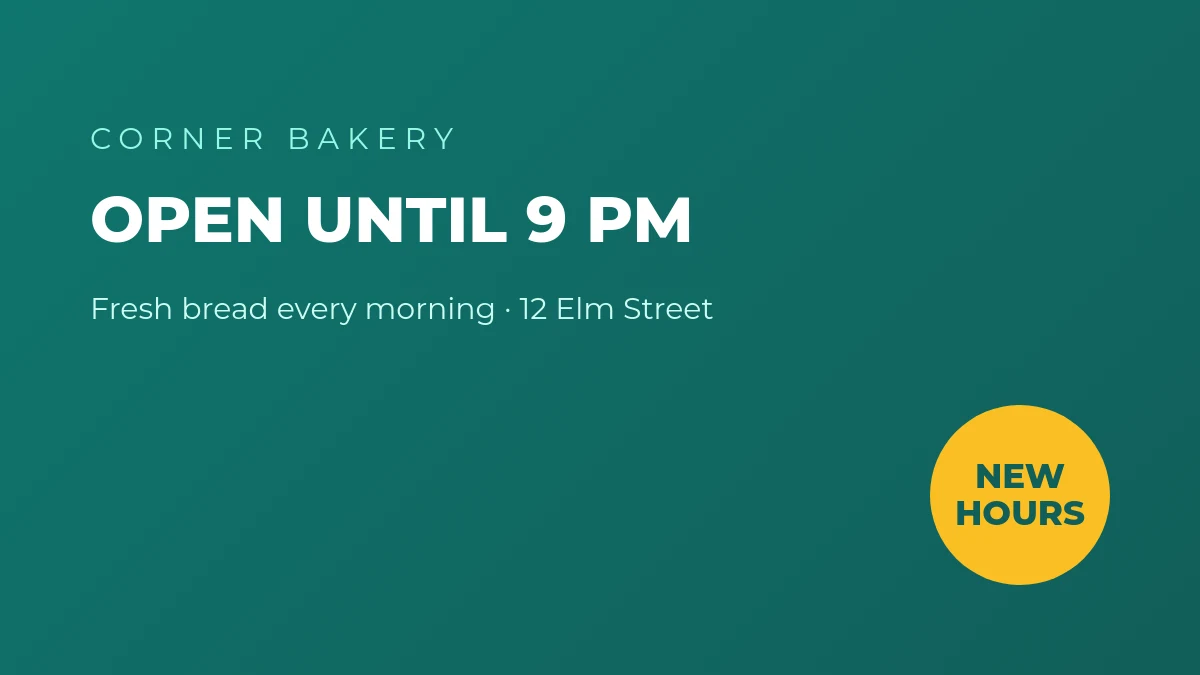
BeforeBakery sign before the edit: OPEN UNTIL 9 PM in Montserrat ExtraBold
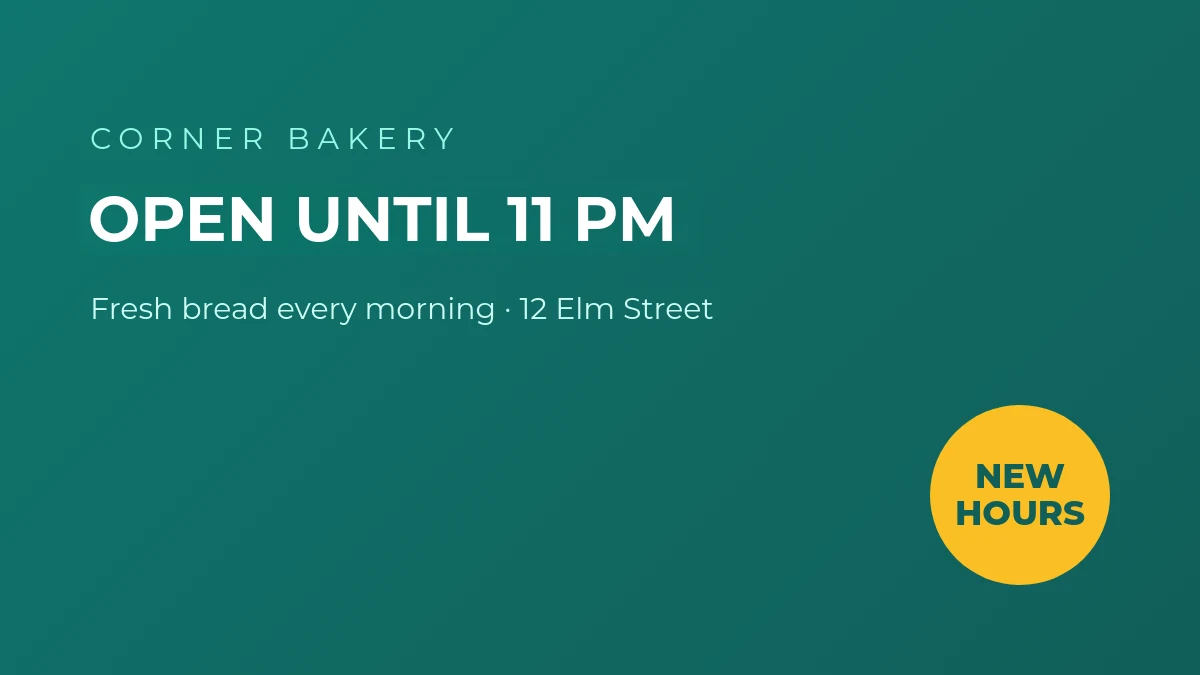
After · same fontBakery sign after the edit: OPEN UNTIL 11 PM in the same Montserrat ExtraBold

How Imagelier keeps the original font

There are two ways to match a font, and they suit different images. Plain type is best set with a real font; decorated lettering is best redrawn.

Exact edit — for clean type

Free & Pro
  • Reads the color, size and stroke weight of the original words straight from the pixels.
  • You choose the typeface from 20 commercially licensed fonts (sans, serif, handwriting, mono, and CJK) — it starts on a clean sans serif.
  • Leaves every other pixel untouched — ideal for menus, screenshots, labels and documents.
  • Color and size can be adjusted by hand too if the auto-match is off.

AI style — for lettering with effects

Pro · 2 credits
  • Redraws only the edited words with AI, keeping outlines, gradients, shadows and display lettering.
  • Every result is checked automatically: the new words must read correctly and nothing else may change.
  • If a result fails the checks, a second model tries once more; if that fails too, your credits are refunded.
  • Best for posters, promo banners and product visuals.

Real examples, straight from the pipeline

No mockups: each frame is an actual Imagelier output at full resolution.

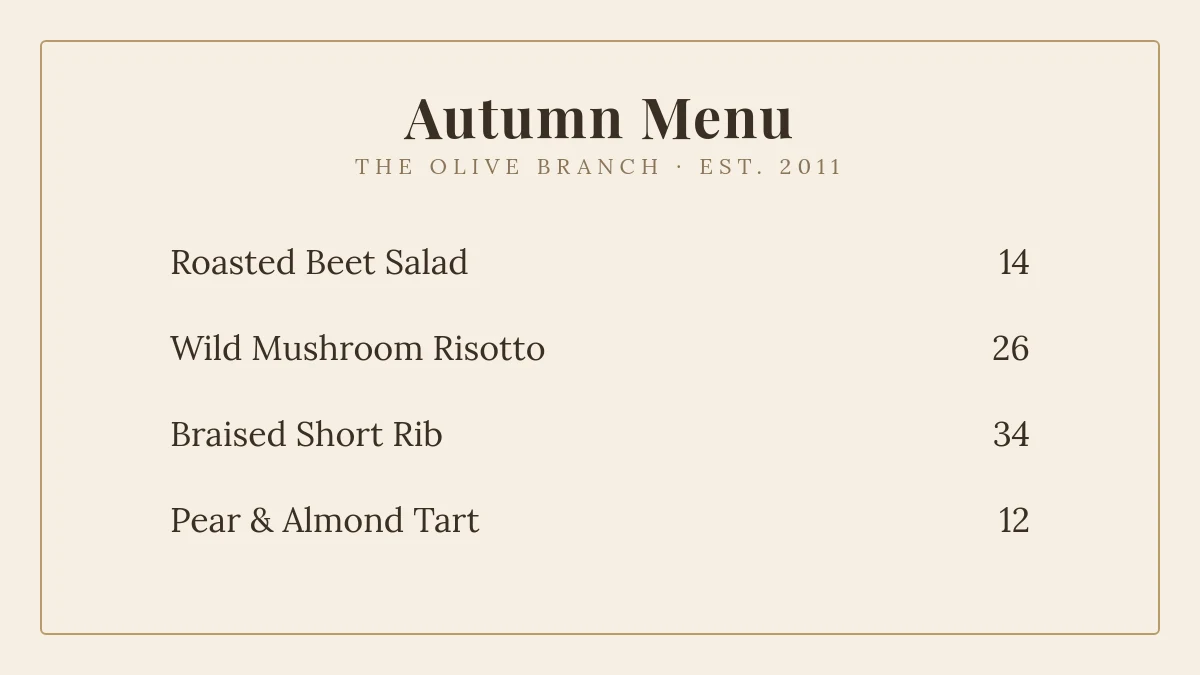
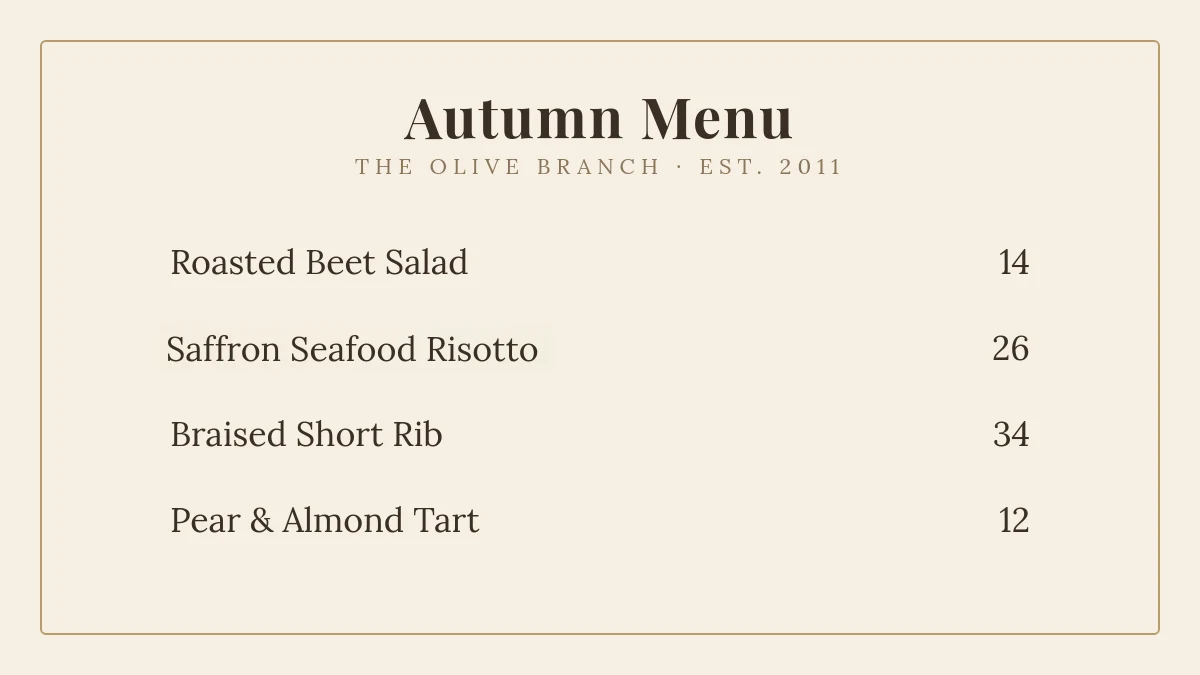
A serif menu: “Wild Mushroom Risotto” → “Saffron Seafood Risotto”

Exact edit in Lora — a longer replacement, same size and color as the dishes around it.

BeforeRestaurant menu before the edit, set in Lora and Playfair Display
AfterRestaurant menu after replacing one dish name in the same Lora font

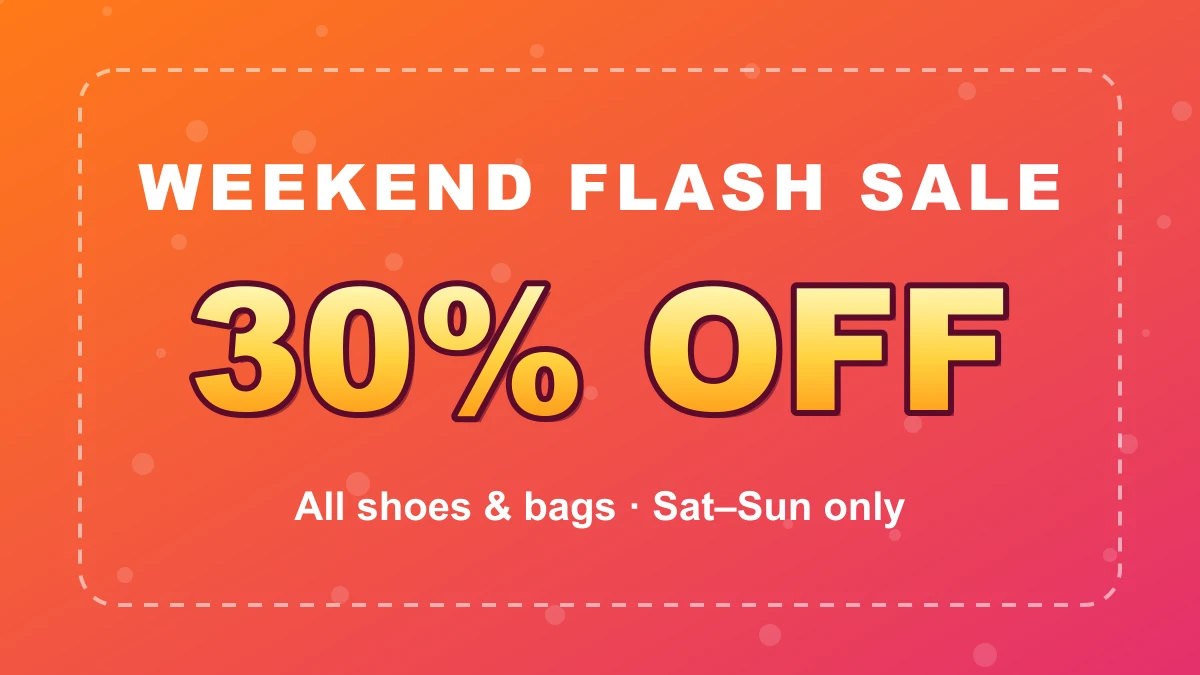
Outlined gradient lettering: “30% OFF” → “50% OFF”

A plain font can't reproduce a stroke, gradient and drop shadow — compare the Exact edit with AI style on the same change.

BeforePromo poster before the edit: 30% OFF in outlined gradient lettering
Exact editSame poster with an Exact edit: 50% OFF in flat yellow, no outline
AI styleSame poster with AI style: 50% OFF redrawn with the original outline, gradient and shadow

How to edit text in an image with the same font

  1. 1

    Upload the image

    JPEG, PNG or WebP up to 20 MB. You can also paste a screenshot from the clipboard.

  2. 2

    Click the words to change

    Detected text is highlighted. Pick a line and type the replacement — size, weight and color are matched automatically.

  3. 3

    Pick the typeface

    Choose the closest of the 20 fonts (serif, sans, handwriting…) and adjust the size if needed, then apply. The original words are erased and the background rebuilt before the new text is set.

  4. 4

    Try AI style for effects

    On the result page, Pro can redraw the edited words with AI to keep outlines, gradients and shadows. Pick whichever version looks right.

Which tool fits a same-font edit?

ToolHow it keeps the fontBest for
ImagelierMatches size, weight and color automatically, erases the old words and rebuilds the background; you pick the typeface — or AI style redraws the words in the original look.A finished image where only some words change.
PhotoshopMatch Font suggests similar fonts; you remove the old text and rebuild the background by hand.Full retouching when you already work in Photoshop.
CanvaGrab Text (Pro) turns text in a photo into an editable text box; you restyle it to match.Rebuilding a design you will keep editing in Canva.
Font identifiersTools like WhatTheFont name the font. They don’t edit the image — you still need an editor and the font file.Finding a font name for a new design.

More detail in Imagelier vs Photoshop.

Questions about keeping the same font

Can Imagelier tell me the exact name of the font?

No, and it doesn’t detect the typeface either: size, weight and color are matched automatically, and you choose the closest of its 20 fonts, which cover most menus, labels, screenshots and signs. For an exact match of unusual lettering, use AI style; for the original font name, use a font identifier.

What if my new text is longer than the original?

The replacement keeps the original size when it fits. When it doesn’t, it is narrowed slightly to stay in the same space rather than overlapping what’s next to it. AI style can also widen the text naturally when there is room.

Does it work with Chinese, Japanese or Korean text?

Yes. The font library includes Noto Sans and Noto Serif for CJK text, and AI style can redraw stylized CJK lettering.

Why does the result sometimes look slightly different?

Custom or hand-drawn lettering can’t be reproduced exactly with a standard font. Try AI style for those, or adjust the font and size by hand. Every result can be compared with the original before you download it.

Is it free?

New accounts get 2 free edits (720p with a small watermark). Pro is $9 a month for 100 edits in original resolution without a watermark, and includes AI style. See pricing.

Can I use it to change any image?

It is built for legitimate updates to images you own or are allowed to edit — menus, posters, product visuals, screenshots and translations. Faking documents or records is prohibited by the Terms of Service, and AI style is disabled for IDs, certificates and financial documents.
Change the words, keep the font.

Upload an image on the homepage and try it — your first edits are free.

Updated September 28, 2026 · Written by the Imagelier team

Open the editor
LogoImagelier

修改图片文字的 AI 图像工坊

X (Twitter)
产品
  • 功能
  • 价格
  • 聊天截图编辑器
  • 保持原字体改字
  • Imagelier 对比 Photoshop
  • Imagelier 对比 Canva
  • 常见问题
资源
  • 博客
  • 更新日志
公司
  • 关于我们
  • 联系我们
法律
  • Cookie政策
  • 隐私政策
  • 服务条款
  • 负责任使用
© 2026 Imagelier,版权所有。