Fix Typos & Garbled Text in AI-Generated Images
AI image generators still misspell and garble text. Learn when to regenerate, when to repair, and how to fix wrong words in about a minute — no Photoshop.
TL;DR
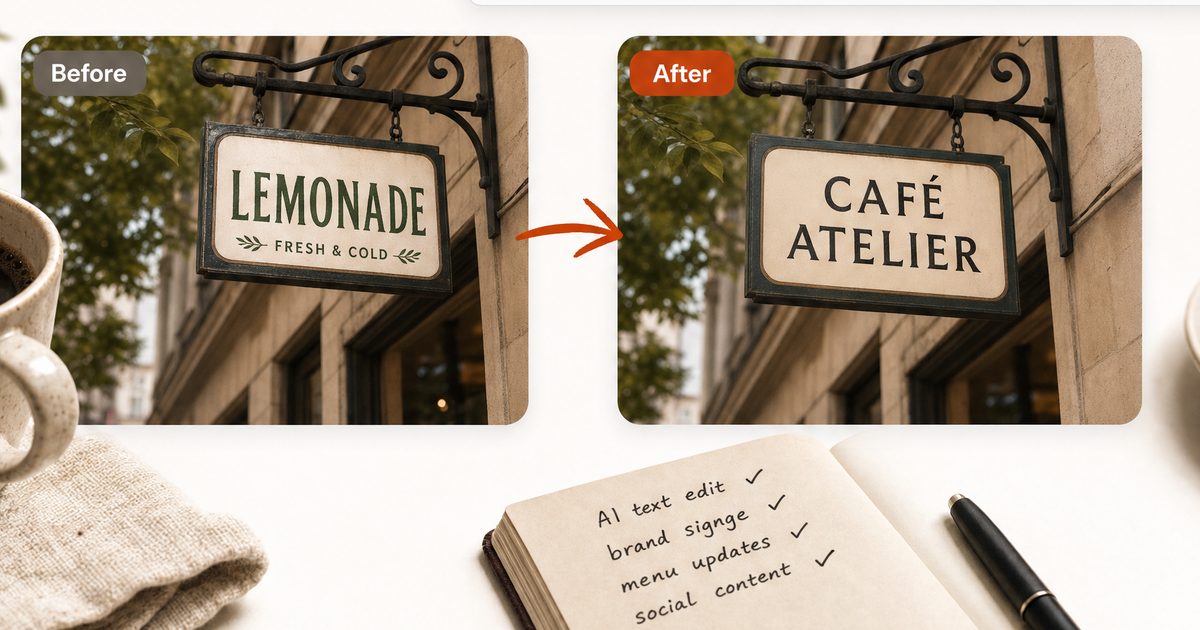
To fix text in an AI-generated image, you have two options: regenerate with a better prompt, or repair the image you already have. If the composition is right and only the words are wrong, repairing is faster — upload the image to an AI image text editor like Imagelier, click the garbled text, type the correct wording, and download the fixed file. The pipeline erases the broken letters, restores the artwork behind them, and renders clean text in the same spot.
Why AI Images Still Get Text Wrong
Diffusion models paint letterforms as shapes, not as characters. The model has seen millions of images containing text, so it knows what "text-like" pixels look like — but it does not spell. That is why AI-generated posters, packaging mockups, and signs come back with almost-words: doubled letters, merged glyphs, or a plausible-looking string that says nothing.
Newer models have improved on short strings, but three failure modes remain stubborn:
- Long text. The more words you ask for, the more likely at least one breaks. A two-word headline usually survives; a tagline rarely does.
- Small text. Fine print, menu lines, and UI labels degrade first because the model spends fewer pixels per glyph.
- Stylized text. Neon, engraved, or perspective-warped lettering mixes letterform and decoration, and the spelling is the first casualty.
So the practical question is not "which generator never garbles text" — none of them guarantee it — but what to do with the image you already have.
Regenerate or Repair? A One-Question Decision
Ask one question: is this image already the one you want?
- No — the composition is negotiable. Re-roll the prompt. Put the exact wording in quotes, keep it short, and accept that you may need several attempts. Regeneration is free-form: every re-roll changes the whole image, not just the words.
- Yes — the artwork is right, only the words are wrong. Repair it. Regenerating now risks losing the composition you chose this image for, and if the image is already in a deck, a listing, or a post, a re-roll is not even an option. Repairing changes only the text region and leaves the rest of the artwork untouched.
Repair is also the only route when the image is not yours to regenerate — for example, a teammate generated it weeks ago and nobody saved the prompt.
How to Fix the Text in About a Minute
The workflow below uses the Imagelier editor — a browser-based AI image text editor built for exactly this job. The general steps apply to any comparable tool; the full background is in the guide on how to edit text in an image with AI.
1. Upload the AI image
JPEG, PNG, and WebP all work. Use the highest-resolution version you have — if the generator offered an upscale, fix the upscaled file, not the preview.
2. Click the garbled text
OCR highlights the text regions it detects. Gibberish is often still detected as text — click the region that contains the broken words. If the lettering is so distorted that detection is uncertain, the editor flags the region as low-confidence so you know what you are working with.
3. Type what it should say
Enter the correct wording. Font, size, and color are matched automatically from the surrounding pixels; you can override the font or color if the automatic match is not close enough.
4. Preview and download
The pipeline erases the original letters, rebuilds the artwork behind them, and renders your replacement in place. Check the preview before downloading — flat poster-style text over painted backgrounds repairs cleanly, while heavily stylized 3D lettering can keep traces of the original effect. Free downloads are 720p with a corner watermark; Pro exports HD without one.
Honest Limits
Repair works best when the broken text is typographic — a headline, a label, a price, a caption. It works worst when the text is sculptural: chrome logos, embossed leather, letters woven into the illustration itself. In those cases the replacement text will be clean and readable, but it will be flat type over the restored background rather than a rebuilt 3D effect. For sculptural text, regenerating with the wording in quotes is usually the better route, and for full manual control there is always the Photoshop workflow.
Reducing Garbled Text in the First Place
Three prompt habits cut the failure rate before any repair is needed:
- Quote the exact string ("OPEN 24 HOURS") and keep it under four or five words; generators handle short quoted strings far better than sentences.
- Ask for less text. If the design needs a paragraph, generate the artwork without it and add real type afterwards.
- Plan for post-editing. Many designers now treat generated images as artwork-only and place every word in an editor afterwards — the text is then real, sharp, and spelled correctly by construction.
Common Questions
Why does AI-generated text look like gibberish? Diffusion models generate the appearance of text, not the characters. Without an explicit text-rendering step, spelling is a statistical accident — common short words often survive, and everything else degrades.
Can I fix text in an AI image without regenerating it? Yes. An AI image text editor detects the text region, erases the broken letters, restores the artwork behind them, and renders correct text in the same position. The rest of the image is untouched.
Does this work for images from Midjourney, DALL·E, or Flux? Yes. Once the image is exported as a JPEG or PNG, its origin does not matter — the repair operates on pixels, so the workflow is the same for any generator's output.
Is it OK to edit an AI-generated image? Editing your own generated artwork to correct its text is normal content work, the same as fixing a typo in a poster you designed. What the terms prohibit is deceptive use — for example, presenting an edited image as an authentic record.
Fix Your Image Now
Upload the AI image with the broken words to the Imagelier editor, click the garbled region, and type what it should have said. It runs in the browser with no Photoshop: sign in with Google or email and a new account gets 2 free edits.
Author
Categories
More Posts
How to Edit Text in an Image with AI in 2026
A practical guide to replacing existing text inside images, screenshots, menus, posters, and product visuals without Photoshop.
How to Edit Text in a Screenshot (Without Retaking It)
A practical, step-by-step guide to editing text in a screenshot with AI — fix typos in UI captures, refresh app mockups, and localize screens without Photoshop.
How to Change Text in a JPEG Without Photoshop
Change text in JPEG files directly in your browser with AI — update menu prices, fix poster typos, and localize labels without Photoshop, GIMP, or design skills.
Newsletter
Join the community
Subscribe to our newsletter for the latest news and updates