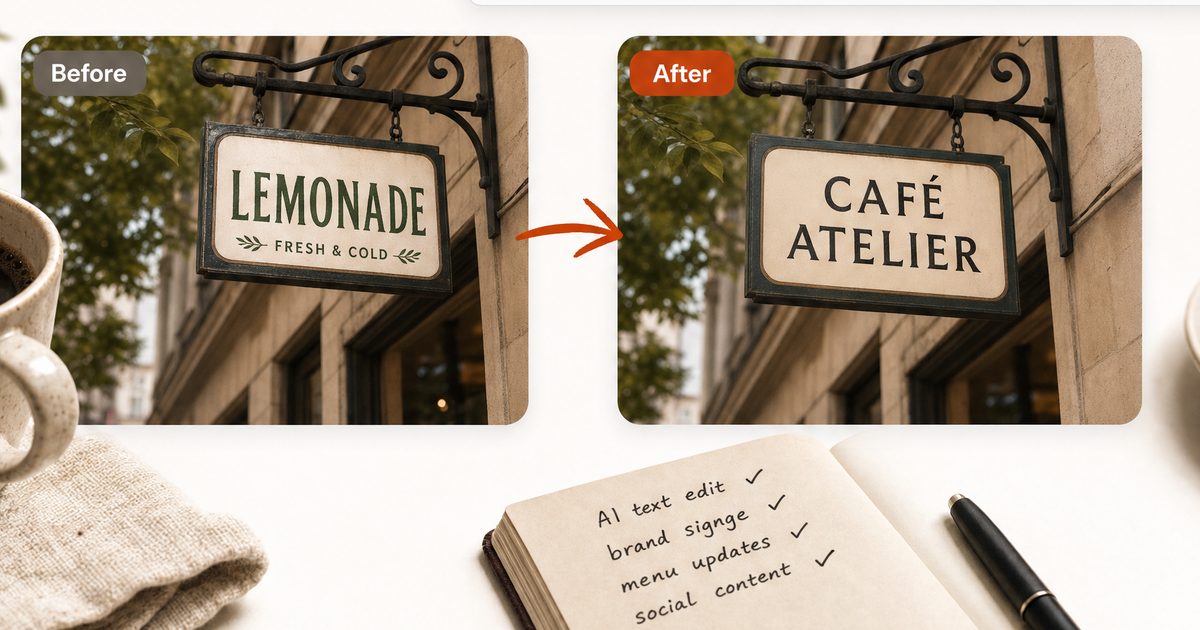
How to Change Text in a JPEG Without Photoshop
Change text in JPEG files directly in your browser with AI — update menu prices, fix poster typos, and localize labels without Photoshop, GIMP, or design skills.
TL;DR
To change text in a JPEG without Photoshop, use a browser-based AI image text editor: upload the JPEG, let OCR detect the existing words, click the line you want to change, type the replacement, and download the edited file. The AI removes the original letters and rebuilds the background automatically — the manual clone-and-retype work that Photoshop is normally used for. You can try it now in the Imagelier editor — a new account gets 2 free edits.
Why JPEG Text Cannot Be Edited Directly
A JPEG is a flattened, compressed photograph of a finished design. Whatever tool created it — Illustrator, Canva, a phone camera pointed at a menu — the export step discarded the layers, the fonts, and the text objects. What is left is a grid of pixels, and some of those pixels happen to look like letters. No editor on earth can "select" that text the way you select text in a Word document, because the text no longer exists as text.
This is why the traditional answer to changing JPEG text has always been Photoshop: open the file, manually paint over the old words using the clone stamp or healing brush, guess the original font, retype the new wording, nudge it into alignment, and export again. It works, and for high-end retouching it is still the right tool. But for the common case — a price changed, a date moved, a word is misspelled — it has three real costs:
- Money. Photoshop is a subscription you may not otherwise need.
- Skill. Clean background reconstruction by hand takes practice.
- Time. Even a practiced user spends many minutes on a one-word fix.
An AI image text editor collapses those three steps — find the text, erase it, restore the background — into one automated pass, which is what makes it practical to change text in JPEG files without opening Photoshop at all. For the full background on the technique itself, see the master guide on how to edit text in an image with AI.
The 5-Step Workflow
1. Upload the JPEG
Open the Imagelier editor in any modern browser and upload the file. JPEG, PNG, and WebP all work. Use the best copy of the JPEG you have: the original export beats a copy that was re-saved, resized, or sent through a messaging app, because every re-save adds another layer of compression noise.
Before editing, make sure the image is yours to modify — your menu, your poster, your product photo, or a design you are licensed to update. Honest corrections and updates are exactly what this workflow is for.
2. Let OCR Detect the Words
OCR (optical character recognition) scans the image and maps every readable text region with coordinates. In the editor this turns the flat JPEG into something that behaves a little like a document again: each detected line becomes clickable. Detection is strongest on clear, horizontal text with reasonable contrast. Tiny script fonts, heavy blur, or text photographed at a steep angle may need a tighter crop or a better source image.
3. Click the Line and Type the Replacement
Select the detected line you want to change and type the new wording. Pick a font and color close to the original. Two practical rules make the result look right:
- Keep the length similar. The original layout reserved a specific space for that text. "$12.50" swaps cleanly to "$13.90"; it does not swap cleanly to "Market price, ask your server."
- Match the color, not just the font. Sample the original letter color if you can. Off-black on cream looks printed; pure black often looks pasted.
4. Let the AI Erase the Old Text and Rebuild the Background
This is the step that used to require Photoshop skills. AI inpainting removes the original letters and reconstructs what the background plausibly looked like underneath, using the surrounding pixels as evidence. Paper textures, flat color blocks, gradients, and product labels reconstruct well. Dense patterns, reflections, and objects crossing the letters are harder and may leave subtle traces.
JPEG adds one specific wrinkle here: compression artifacts. JPEG compresses in 8×8 pixel blocks and sheds detail around sharp, high-contrast edges — which is exactly what letters are. On a heavily compressed file there is often a faint halo of noise hugging each character. Manual clone-stamping fights that halo pixel by pixel; inpainting regenerates the whole region in one pass, which is usually cleaner. But the rule still holds: the less compressed your source, the better the result.
5. Preview and Download
Zoom into the edited area and compare it with the original. Check the edges where the old text was removed, the alignment of the new line, and the overall sharpness. Free downloads are watermarked and capped at 720 px on the longest side — enough to validate the edit. Pro downloads are high resolution (up to 4096 px) with no watermark, intended for the version you actually print or publish. Plans are on the pricing page.
Imagelier vs Photoshop vs GIMP vs Canva
| Tool | Cost | How you change JPEG text | Best for | Tradeoff |
|---|---|---|---|---|
| Imagelier | Free tier; Pro $9/mo | OCR finds the text, AI erases and rebuilds the background, replacement renders in place | Fast, focused text replacement in flat images | Not a general photo editor |
| Photoshop | Subscription | Manual clone/heal, retype, match font, export | Professional retouching with full control | Slow and skill-heavy for small fixes |
| GIMP | Free | Same manual workflow as Photoshop with a steeper interface | Manual editing on a zero budget | The hardest learning curve of the four |
| Canva | Free tier | Recreate the design as editable elements rather than editing the JPEG | Building a fresh version of the asset | Recreating an existing JPEG faithfully takes the longest |
GIMP deserves an honest note: it is the classic "without Photoshop" answer, and it genuinely can do this job for free. What it does not remove is the manual labor — you still reconstruct the background and match the font yourself. The AI approach replaces the labor, not just the license fee.
For a deeper dimension-by-dimension breakdown of the two main routes, see the full Imagelier vs Photoshop comparison.
Common Use Cases
Menu Prices on Exported JPEGs
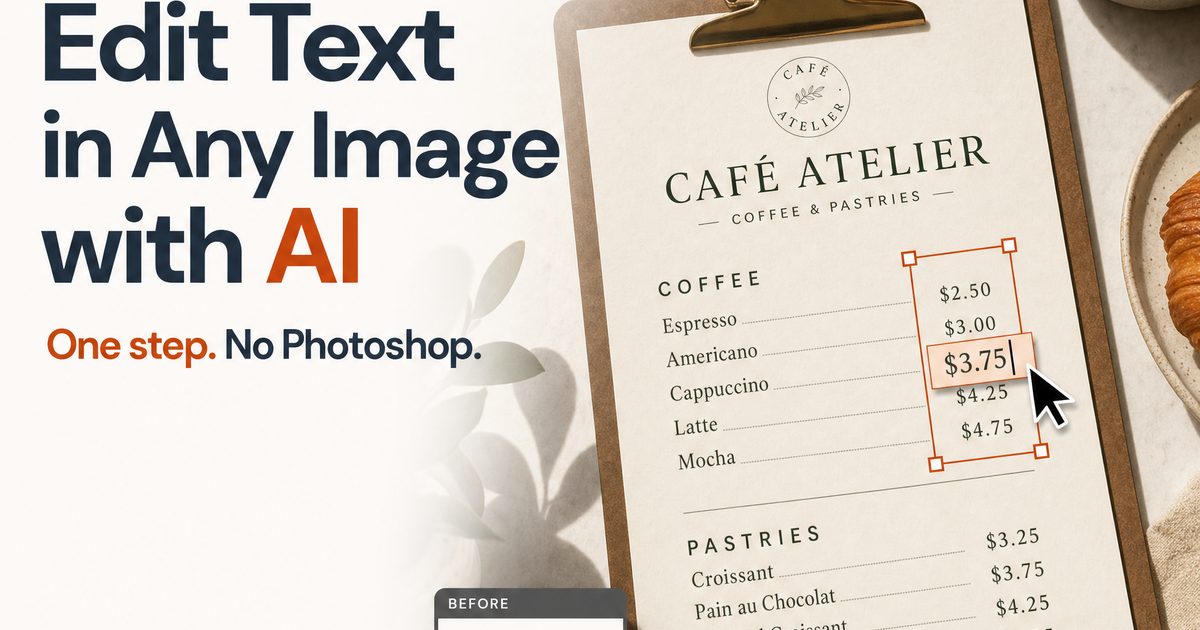
Restaurants often have only the exported JPEG of a menu — the designer moved on, the original file is lost. When prices or item names change, replacing the text directly in the JPEG is faster than rebuilding the menu, and the typography of the original design stays intact.
Poster and Flyer Typos
A date, venue, or name is wrong and the poster is already exported. If the fix is a short phrase, replacing it in the JPEG saves a round trip through the original design tool — or rescues the situation when no source file exists at all.
Product Label and Packaging Localization
Preparing an English-market draft of a label or packaging shot often starts with a JPEG. Swapping the visible text produces a realistic preview for review long before the final localized artwork is rebuilt in the source design system.
Marketing Banner Updates
Seasonal banners, sale percentages, and campaign dates change on a schedule. When the layout still works, a text replacement turns last quarter's banner into this quarter's in minutes.
If your source is a screen capture rather than an exported design, the workflow is nearly identical — there is a dedicated guide on how to edit text in a screenshot covering UI-specific tips.
Natural FAQ
Can I change text in a JPEG for free?
Yes. Sign in with Google or email and a new account gets 2 free edits, downloaded at 720 px with a small watermark. High-resolution (up to 4096 px), watermark-free output is part of the Pro plan.
Does editing a JPEG reduce its quality?
Editing itself does not, but every JPEG re-save applies lossy compression again. Edit from the best source you have, make all your text changes in one session, and export once rather than editing an already re-saved copy repeatedly.
What if my JPEG is low resolution?
It can still work, but expect softer results: OCR has fewer pixels to read and the AI has less detail to rebuild. If a larger or less-compressed version of the image exists anywhere, start from that instead.
Do I need to know what font the original used?
No. You pick a visually similar font from the editor's library. For short replacements — prices, dates, single words — a close match at the right size and color is almost always convincing. Long passages in a distinctive typeface are where mismatches show.
Is GIMP good enough if I have time to learn it?
If you enjoy manual editing, yes — GIMP can produce excellent results for free. The comparison to make is labor, not capability: GIMP gives you the same manual clone-and-retype workflow as Photoshop, while an AI editor automates that workflow. For occasional one-line fixes, automation usually wins on time.
Is it legal to change text in a JPEG?
It depends on rights and intent, not on the file format. Editing images you own or are licensed to modify, for honest purposes — corrections, updates, localization, mockups of your own materials — is normal creative work. Editing an image to mislead people, misrepresent records, or impersonate someone is prohibited by Imagelier's Terms, and no edit that deceives belongs in this product.
About the Author
Imagelier is built by X2YLabs, an independent maker building AI tools for global users. Follow the build on X: @X2YLabs. This article was last updated on July 30, 2026.
Sources and Further Reading
Author
Categories
More Posts
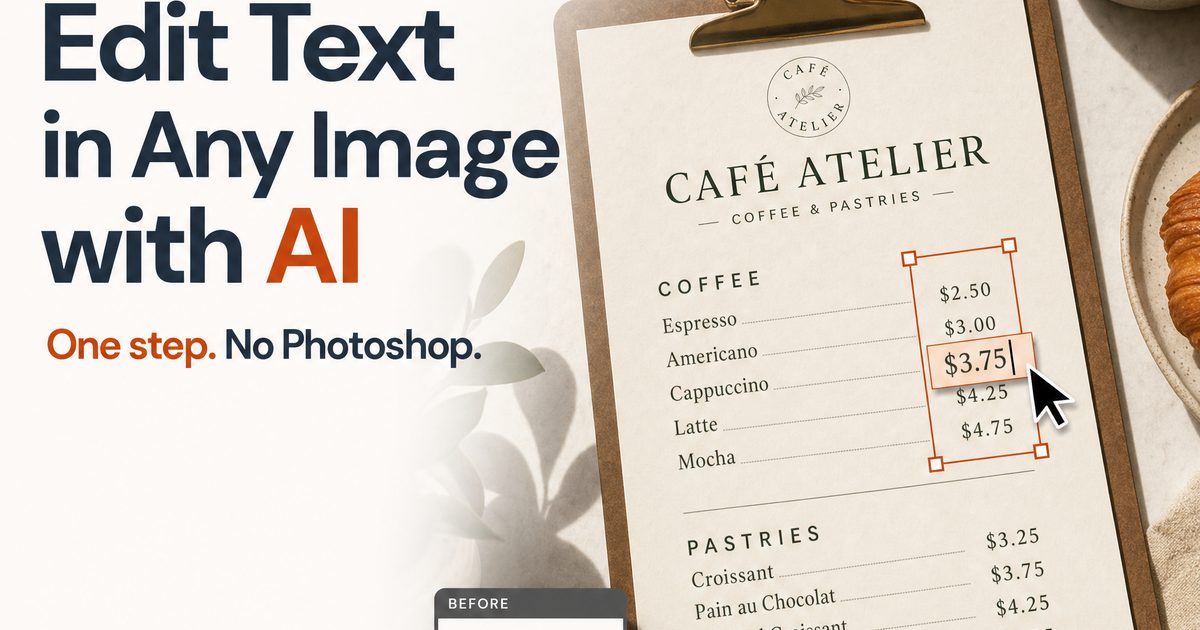
Fix Typos & Garbled Text in AI-Generated Images
AI image generators still misspell and garble text. Learn when to regenerate, when to repair, and how to fix wrong words in about a minute — no Photoshop.
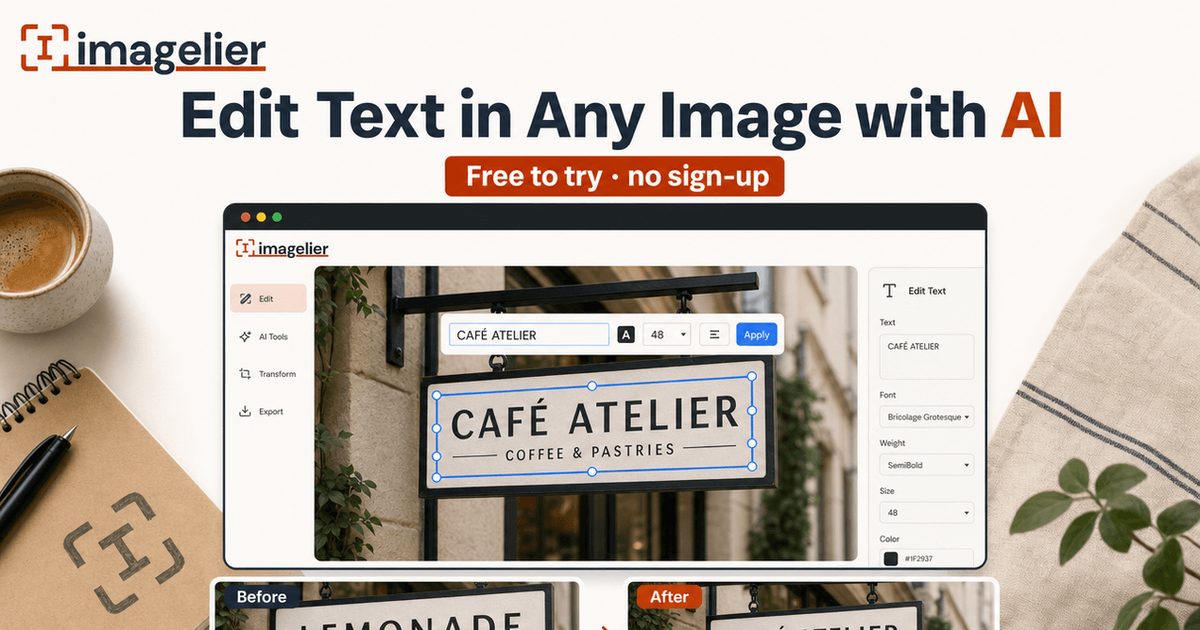
How to Edit Text in a Screenshot (Without Retaking It)
A practical, step-by-step guide to editing text in a screenshot with AI — fix typos in UI captures, refresh app mockups, and localize screens without Photoshop.
How to Edit Text in an Image with AI in 2026
A practical guide to replacing existing text inside images, screenshots, menus, posters, and product visuals without Photoshop.
Newsletter
Join the community
Subscribe to our newsletter for the latest news and updates