How to Edit Text in an Image with AI in 2026
A practical guide to replacing existing text inside images, screenshots, menus, posters, and product visuals without Photoshop.
TL;DR
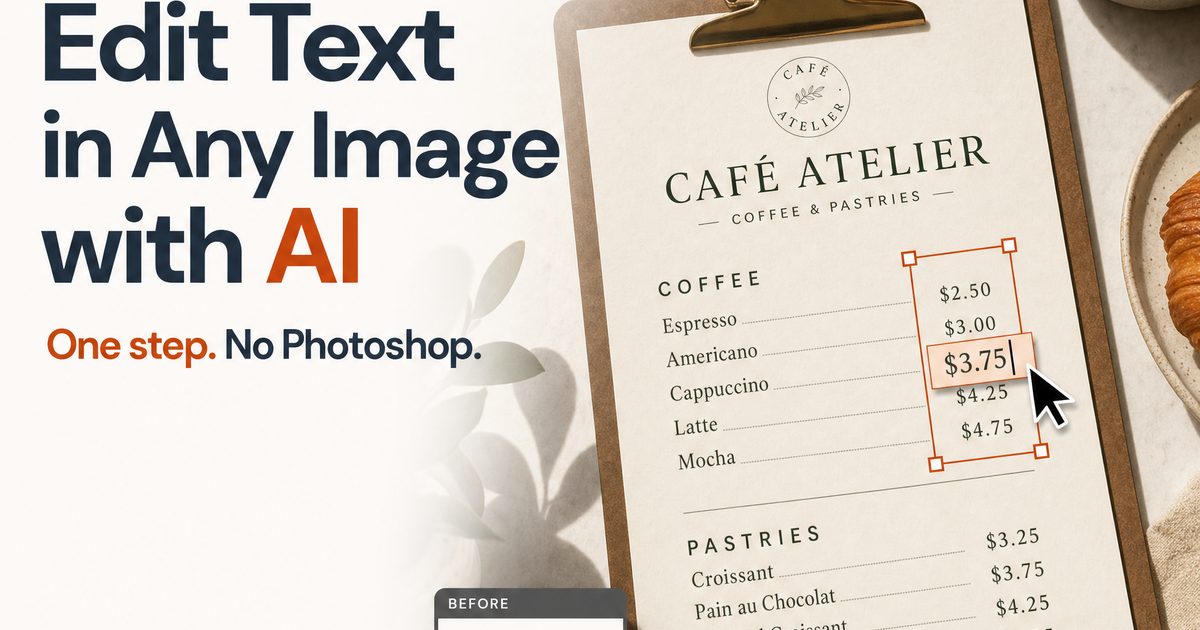
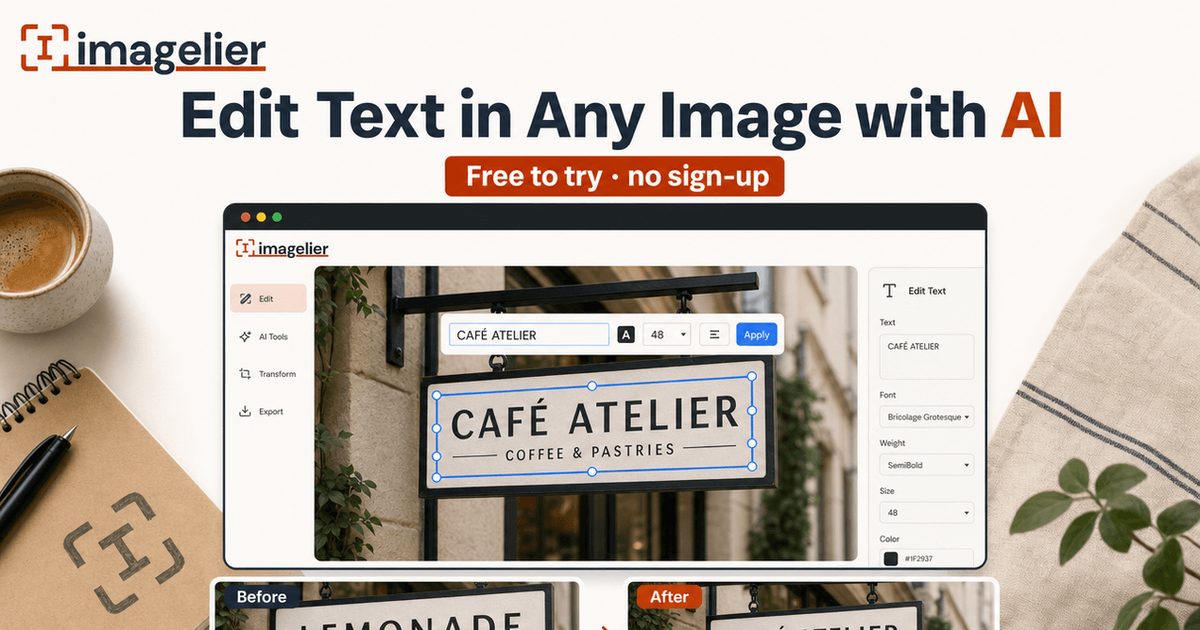
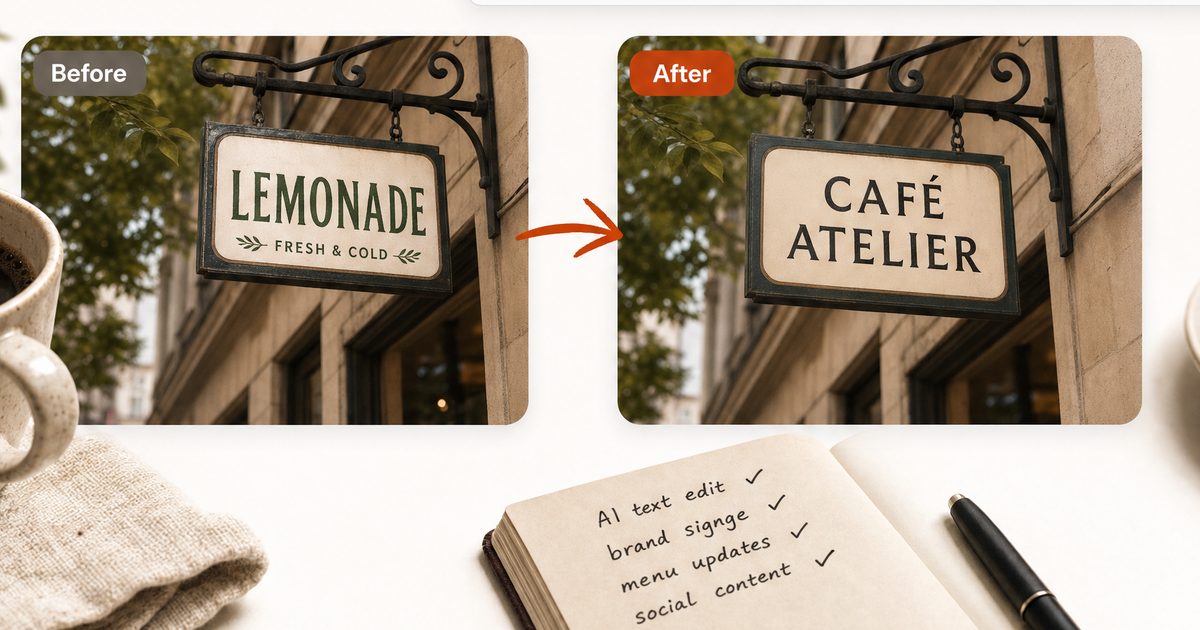
To edit text in an image, use an AI image text editor that detects the original text, removes it from the background, and renders replacement text in the same area. Upload the image, click the detected text, type the new wording, preview the result, and download the edited image. You can try this directly in the Imagelier editor without installing anything.
What Does "Edit Text in an Image" Mean?
Editing text in an image means changing words that are already baked into a flat file such as a JPEG, PNG, WebP, screenshot, menu photo, poster, product visual, or exported design. It is different from editing a text layer in a design file. Once a design is flattened into an image, the text is just pixels. There is no editable font object to select.
That is why the workflow is harder than it looks. A good image text editor has to solve three problems at once:
- It has to find the text region.
- It has to remove the original letters without damaging the background.
- It has to place the replacement text in a way that still looks believable.
Traditional tools can do this, but the work is manual. You might open Photoshop, clone the background, paint over the original letters, choose a similar font, resize the new text, adjust the color, and export the image again. That is a reasonable workflow for professional retouching, but it is slow when the task is simply "change this menu price" or "fix this typo in a poster."
Imagelier is designed for that practical middle ground. It is not a general photo editor and it is not a layout design app. It is a focused AI workflow for replacing existing text in a finished image.
The 5-Step Workflow
1. Upload the Image
Start with a clear source image. The best inputs are screenshots, menus, posters, product labels, presentation exports, flyers, and UI screenshots where the text is readable. JPEG, PNG, and WebP are the most common formats.
Image quality matters because OCR and inpainting both depend on visible details. If the source image is heavily blurred, compressed, tilted, or very small, the result can still work, but the AI has less information to recover the background and match the replacement.
Before uploading, ask one simple question: do you have the right to edit this image? If it is your menu, product photo, documentation screenshot, campaign asset, or licensed design, you are in the right use case. If the edit would mislead people, fabricate a record, impersonate someone, remove attribution, or hide a required disclaimer, do not do it.
2. Let OCR Find Text Regions
OCR means optical character recognition. In this workflow, OCR scans the image and returns text regions with coordinates. Those coordinates are what make the editor clickable. Instead of dragging a rectangle by hand, you can select the detected line that needs to change.
OCR is not perfect. It can struggle with tiny letters, unusual fonts, decorative scripts, strong perspective, low contrast, and text placed on complex textures. That is why a useful editor should show the detected regions and let you decide what to change. If the recognition confidence is low, review the preview more carefully before using the output.
Imagelier uses a provider-based OCR layer. The default provider is Alibaba Cloud OCR (RecognizeAdvanced), with Baidu PP-OCRv5 as an automatic fallback. A self-hosted OCR provider is planned as a later switch once operational testing proves it is stable enough for production traffic.
3. Select the Text and Type the Replacement
After OCR, click the text region you want to replace. Type the new wording and choose a font and color that fit the image. The fastest edits usually keep the replacement short. If the original line says "Lunch Set $12" and the new line says "Weekend Family Brunch Menu Available Every Saturday", the new text will need more space than the original design gave it.
For best results, keep the replacement close to the original line length. If you need a much longer message, consider editing the layout in a design tool instead of forcing a text replacement into the old space.
4. Remove the Old Text and Restore the Background
This is the step that separates an AI image text editor from a simple annotation tool. Covering old words with a new label is easy, but the old pixels are still underneath. Replacing text means the original letters need to be removed first.
AI inpainting uses the surrounding pixels to reconstruct what the background probably looked like before the original text was placed there. It works best on simple backgrounds, gradients, paper textures, flat colors, product labels, and UI surfaces. It is harder on faces, dense patterns, shadows crossing over letters, reflective surfaces, and complex photographic backgrounds.
The goal is not magic. The goal is a practical edit that looks good enough for the intended use. A menu correction, documentation screenshot, or social post preview usually has a different quality bar from a billboard or legal record.
5. Preview, Download, and Review
Always review the output before using it. Look at letter spacing, color, alignment, and the area where the old text was removed. If traces remain, try a shorter replacement, a clearer source image, or a different crop.
Free outputs in Imagelier are watermarked and limited to 720 px on the longest side. Pro outputs are designed for production use with original-resolution downloads up to the product limit and no watermark. That keeps the Free plan useful for testing while making the production boundary clear. Compare the Free and Pro plans for full details.
Imagelier vs Photoshop vs Canva vs Pixelcut
| Tool | Best for | How text replacement works | Tradeoff |
|---|---|---|---|
| Imagelier | Replacing existing text in a flat image | OCR finds text, AI removes the old words, replacement text is rendered back into place | Focused on this one workflow, not full design editing |
| Photoshop | Professional retouching and detailed control | Manual selection, clone/heal, font matching, layers, export | Powerful but slow for simple text fixes |
| Canva | Creating or rebuilding designs from editable elements | Works best when you have the original editable design or can recreate it | Less direct when the only source is a flattened image |
| Pixelcut | Product-image utilities and AI cleanup | Useful for product visuals and background workflows | Not specialized around existing text replacement |
Use Photoshop when precision matters more than speed. Use Canva when you are building a new design or still have editable elements. Use a product-image tool when the main issue is background cleanup. Use Imagelier when the job is specifically to replace existing text in a flat image without rebuilding the whole asset.
Common Use Cases
Menu Price Updates
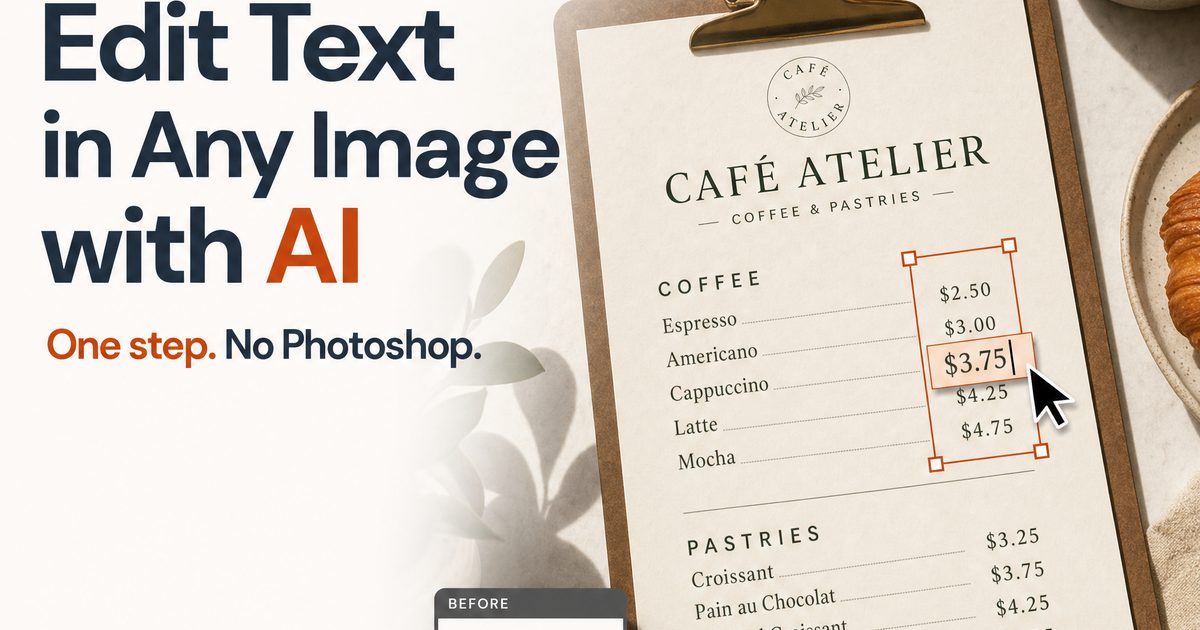
Restaurants and cafes often have menu photos, printed menu exports, or social media graphics that need small changes. If the layout is still correct and only prices or item names changed, replacing the text directly can be faster than finding the original design file.
Poster and Flyer Corrections
Typos happen after a poster has already been exported. When the correction is a small phrase, date, location, or callout, an image text editor can save time. The key is to compare the result against the original and make sure the edited area still looks natural.
UI Documentation Screenshots
Product teams often need to update labels, feature names, placeholder values, or sample numbers in screenshots. If the goal is documentation or a launch post, replacing text in the screenshot can be faster than recreating a whole product state.
Product Visual Localization
When preparing English-market variants of product visuals, short text snippets may need to change. Image text replacement can help produce quick drafts before the final localized asset is rebuilt in the source design system.
Marketing Mockups
Mockups are useful when you need to show an idea before the final asset exists. The safe boundary is clear: use mockups for your own marketing materials, product demos, and internal reviews. Do not use them to misrepresent real events, messages, receipts, or records.
What Works Best?
The best images usually have:
- clear text with enough pixel detail;
- moderate contrast between text and background;
- a background that can be reconstructed from nearby pixels;
- replacement text that is similar in length to the original;
- a use case where a small visual imperfection is acceptable.
Harder images usually have:
- tiny text or heavy JPEG compression;
- dramatic perspective or curved surfaces;
- dense patterns behind the letters;
- shadows, reflections, or hands crossing the text;
- ornate fonts that are difficult to match;
- critical records where any edit could mislead someone.
The most reliable habit is to treat AI output as a draft until you have reviewed it. If the image is for a high-stakes legal, financial, medical, or public record context, do not use an AI edit unless you are certain the edit is lawful, transparent, and appropriate.
Safety and Legality
Editing text inside an image is a neutral capability. The use case determines whether it is appropriate. Imagelier is built for legitimate updates: menus, posters, product visuals, UI labels, localization drafts, and marketing assets you are allowed to modify.
Imagelier's Terms prohibit deceptive or unlawful uses, including fabricated evidence, misleading records, impersonation, falsified documents and receipts, harassment, scams, non-consensual intimate content, sexual content involving minors, and unauthorized watermark or attribution removal.
If an edit would make another person believe something false about a real event, transaction, identity, conversation, or authorization, it does not belong in this product.
Privacy Notes
An image text editor needs to process the image to do useful work. Imagelier's Privacy Policy names the processors used for storage, AI inference, OCR, payments, email, and analytics. The OCR layer currently defaults to Alibaba Cloud OCR (RecognizeAdvanced) with Baidu PP-OCRv5 as a fallback, unless the self-hosted provider is enabled later.
The retention plan is intentionally bounded. Anonymous and Free task objects are cleaned after 24 hours where the tier is known or cannot be safely identified. Pro task objects are retained for up to 30 days so recent work can be recovered and failed paid tasks can be investigated.
If you are editing sensitive information, use the lowest practical exposure: crop the image, remove unrelated personal information before upload, and avoid uploading data you do not need to edit.
Limitations
No AI image text editor is perfect. Expect occasional issues:
- the OCR may miss a line or split text incorrectly;
- background restoration can leave subtle traces;
- replacement text may not match the original font exactly;
- long replacement text may not fit the old area;
- low-resolution inputs can produce soft or distorted output;
- complex scripts or tiny multilingual text may need manual review.
These limitations do not make the workflow useless. They simply mean the workflow should be used where speed and practicality matter, and where you can inspect the result before publishing.
Natural FAQ
Can I edit text in an image without Photoshop?
Yes. If the source is a flat image and the edit is limited to existing text, an AI image text editor can be faster than opening Photoshop. Upload the image, select the detected text, type the replacement, and review the result.
Is this the same as adding text on top of an image?
No. Adding text on top leaves the old words underneath or requires a manual cover-up. Text replacement first removes the original region, restores the background, and then renders the replacement text.
What image formats work best?
JPEG, PNG, and WebP are good launch formats. Clear, high-resolution images with readable text work best. Heavy blur, strong compression, unusual fonts, and complex backgrounds make the task harder.
Can I use this for screenshots?
Yes, when the screenshot is yours to edit and the use is lawful. Common safe uses include UI documentation, product demos, anonymizing sensitive values, and localizing sample screens. Do not use edited screenshots to mislead others.
Why does the replacement sometimes look imperfect?
The AI has to infer the background and approximate the visual style of the original text. If the background is complex or the original font is unusual, small artifacts can remain. Review every output before using it.
Does Imagelier keep my images forever?
No. The current retention plan is bounded: anonymous and Free task objects are cleaned after 24 hours, while Pro task objects are retained for up to 30 days. See the Privacy Policy for the current processor and retention details.
About the Author
Imagelier is built by X2YLabs, an independent maker building AI tools for global users. Follow the build on X: @X2YLabs. This article was last updated on July 30, 2026.
Sources and Further Reading
Author
Categories
More Posts
How to Edit Text in a Screenshot (Without Retaking It)
A practical, step-by-step guide to editing text in a screenshot with AI — fix typos in UI captures, refresh app mockups, and localize screens without Photoshop.
How to Change Text in a JPEG Without Photoshop
Change text in JPEG files directly in your browser with AI — update menu prices, fix poster typos, and localize labels without Photoshop, GIMP, or design skills.
Fix Typos & Garbled Text in AI-Generated Images
AI image generators still misspell and garble text. Learn when to regenerate, when to repair, and how to fix wrong words in about a minute — no Photoshop.
Newsletter
Join the community
Subscribe to our newsletter for the latest news and updates